Every day, agencies switch between calendars, project plans, budgets and invoices. The more tools involved, the harder it becomes to keep work, meetings and financial data connected.
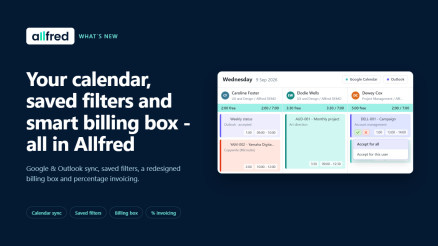
Therefore, we've introduced Google & Outlook Calendar Sync to connect your meetings with Allfred Planning, redesigned key financial workflows with an improved agency billing box, expanded budgeting for international projects, and introduced Saved Filters to help users keep their workflow smooth and clear.
Here's everything that's new 👇
📅 Google & Outlook Calendar Sync
Bring your calendar into Allfred Planning.
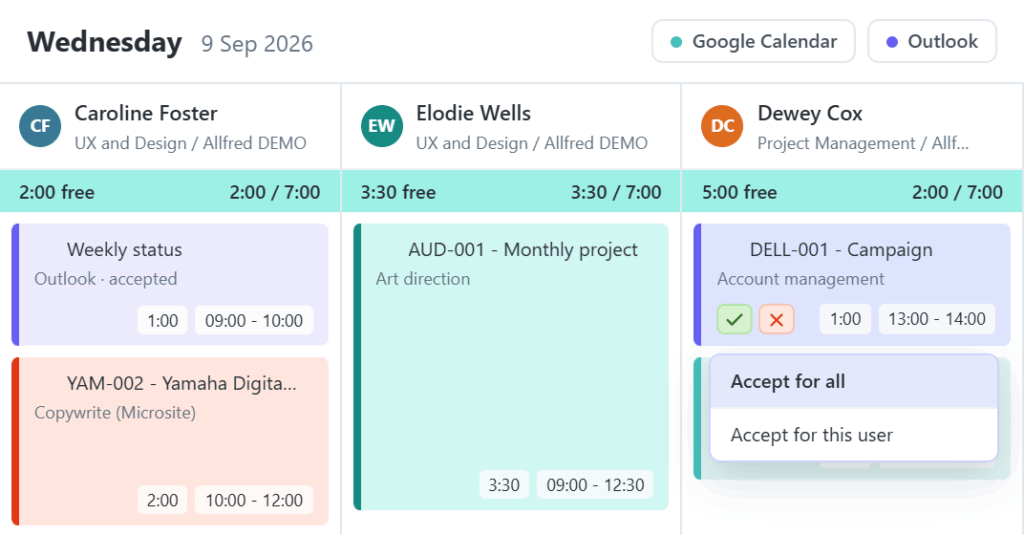
Planning your work shouldn't mean switching between multiple calendars all day. That's why we built a native Calendar sync: connect your Outlook or Google Calendar, and your meetings show up directly as importable events inside Allfred Planning.
Accept an event, link it to a task, and it becomes a full allocation. Even before you accept it, it already blocks that time in the planner, so nobody double-books you. Whether you're planning your own week or coordinating an entire team, you'll spend less time jumping between tools and more time getting work done.
🔍 Saved Filters: Remember Your Views, Work Faster
Set it up once. Allfred remembers the rest.
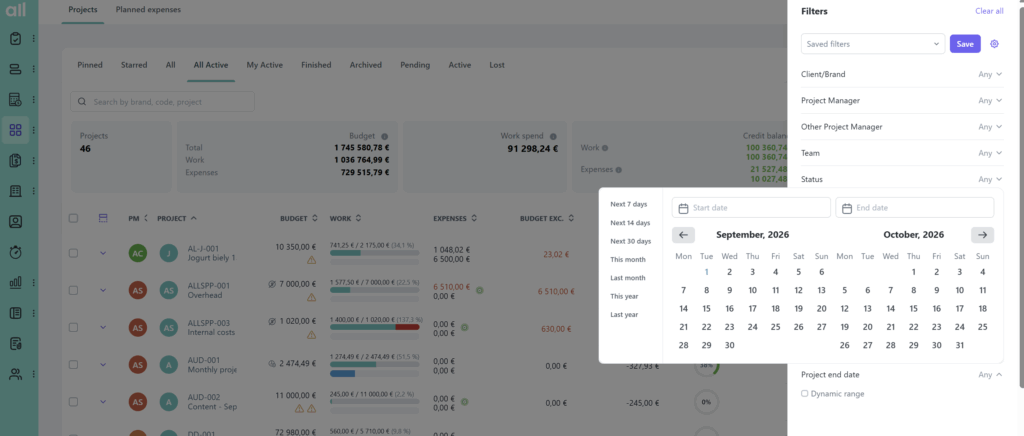
Rebuilding the same filter every time you open a page gets old fast. That's why Allfred now keeps track of it for you - the last filter and sorting you used in Time Reports, Planning, Projects, Finance, Reports, Documents and more are automatically restored the next time you log in, as part of our broader Smart Filter Memory.
Prefer more control? Save your favourite filter combinations under a name (e.g. "My work" or "Unpaid this month") and switch between them instantly. You can even set date filters to a dynamic range - like "This month" - so a saved filter always shows current data, not last month's.
📦 Redesigned Billing Box
The information you need. Right where you expect it.
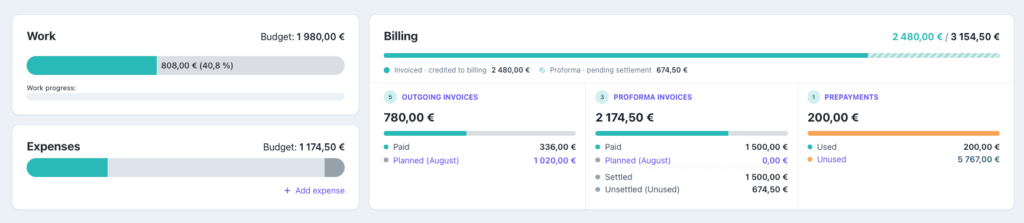
We rebuilt the Billing Box in project detail so the numbers that matter are visible at a glance, not buried in a table. A clear total billed vs. budget figure sits at the top, backed by a progress bar that separates what's formally invoiced (solid green) from what's still pending settlement (hatched) - no more guessing where a proforma stands.
The new layout was designed with two audiences in mind: project managers get a quick read before invoicing, and finance teams get faster access to the details they check every day.
📊 Invoice Using Percentages
Less calculating. More invoicing.
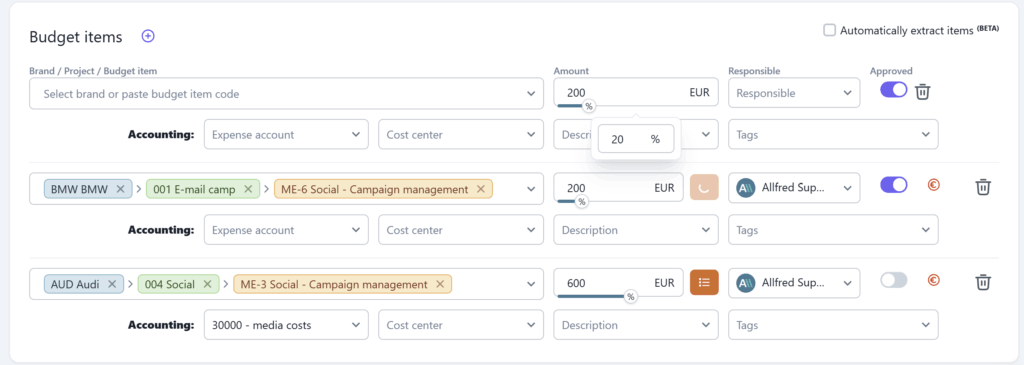
No more pulling out a calculator to figure out what 30 % or 50 % of a project comes to - just enter the percentage, and Allfred generates the invoice for you.
The same logic works in reverse too: a received expense can be split across multiple budget items by percentage, with Allfred calculating the exact values automatically - handy whenever a single invoice or receipt needs to be divided across more than one budget item.
🌍 Easier Budgeting & Invoicing in Any Currency
Build in any currency, and the rate carries straight through to the invoice.
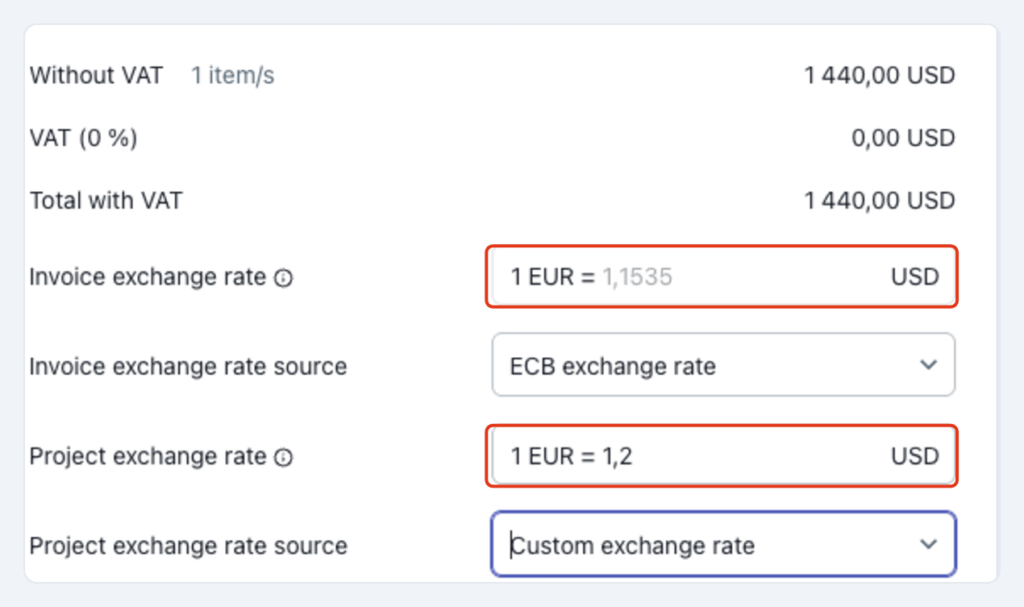
You can build budgets and price quotes in a currency other than your workspace currency, and when it's time to invoice, the exchange rate used in the budget carries straight through - no re-entering or recalculating it by hand.
Because rates can shift between budgeting and invoicing, Allfred keeps two rates separate: the Invoice exchange rate - printed on the invoice PDF and sent to accounting - and the Project exchange rate - used to convert the invoiced amount for that project's statistics and reports inside Allfred. Each rate can independently be set from the ECB's daily rate, the rate used in the original budget, a custom rate, or a rate fixed on the client. During invoicing, both conversions are shown side by side, so you always see exactly what's going out to the client and what lands in your reports.
🧮 Editing VAT Amounts on Expenses
When the numbers need to match exactly.
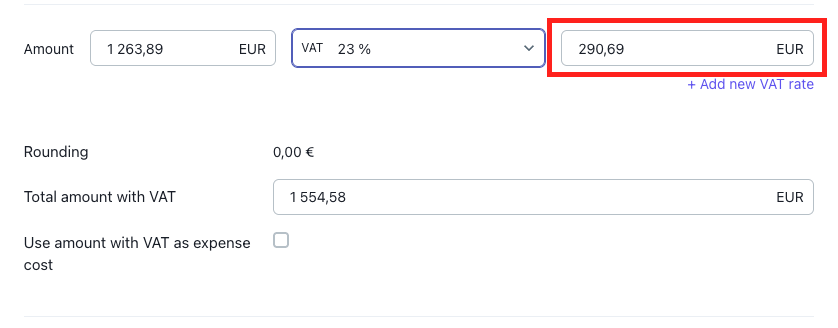
When you enter an amount and VAT rate on an expense, Allfred automatically calculates the VAT amount and the total with VAT - and in most cases, that's exactly right. But every now and then, the source invoice or receipt is rounded slightly differently, by a cent or two. You can now manually edit the calculated VAT amount so it matches your source document precisely.
If you adjust the VAT amount in the summary, Allfred checks that the VAT amounts on the budget items below still add up to the same total, so what you claim per item always ties back to the document. Working with an expense that mixes multiple VAT rates? Add extra rate rows in the summary, and only those rates will show up in the budget item dropdowns below - keeping the summary and the item-level detail in sync.
✨ A Few Smaller Improvements
Alongside the major updates, we've also polished a few everyday details:
- 🔴 Mark as Unpaid - Proformas, invoices and expenses can now be marked as unpaid directly. If a proforma already has a linked billing invoice, that invoice needs to be deleted first; if it only has a payment receipt as its tax document, that receipt is deleted automatically. When a matched payment gets removed in the process, Allfred also asks whether to cancel the match itself - a checkbox that's ticked by default, so you don't have to clean it up separately. See more.
- 🧭 Breadcrumb navigation - Redesigned breadcrumbs give you a clearer path through the app. Whether you're moving between clients, projects, budgets, reports or finance, you'll always see exactly where you are and can jump back with a single click.
- 💰 Invoice Budget Items & Expense Items - Two new lists give you a much more granular view of your financials. Instead of opening invoices one by one, you can see exactly which budget items were invoiced and which expenses were assigned to them - across every project and client. See more.
- 📎 Invoice Attachment Name Templates - Generic filenames on invoice attachments are a thing of the past. Build your own naming template with dynamic fields like invoice number, client name, project or issue date, and Allfred generates every PDF automatically - a small change that makes searching, sharing and archiving invoices much easier, especially for growing finance teams. Find out.
- 📊 Budget Exceeded Dashboard - Moved from List of Projects to Reports.
- 🧾 Work in Progress - Moved from List of Projects to Finances.
- ☑️ Selection summary in Expenses - Select expenses via checkboxes and see the total sum below.
- 💶 Amount filter in Expenses - Filter expenses by amount, from – to.
- 📥 Report downloads now match your filters - Exports now reflect exactly what you filtered on screen, not just a date range.